Keep your tool active
Annotation tools stay active after you use them, so you can add several objects in a row. Press S or Esc to return to Selection.
A quick guide to annotating, editing and sharing your images.Un guide rapide pour annoter, modifier et partager vos images.
Paste an image in Fuze, then annotate with arrows, highlights, texts and many more...
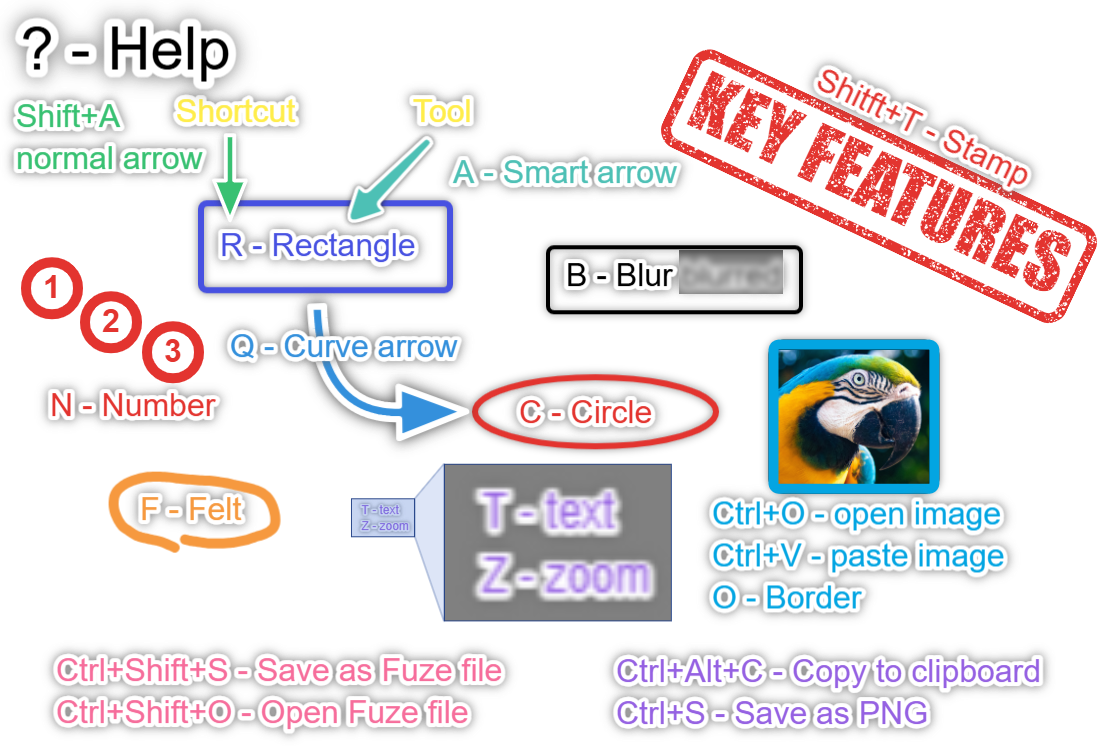
Combine arrows, shapes, highlights and text to make your point clear.
Collez une image dans Fuze, puis annotez-la avec des flèches, des surlignages, du texte et bien plus encore…
Combinez flèches, formes, surlignages et textes pour faire passer votre message.
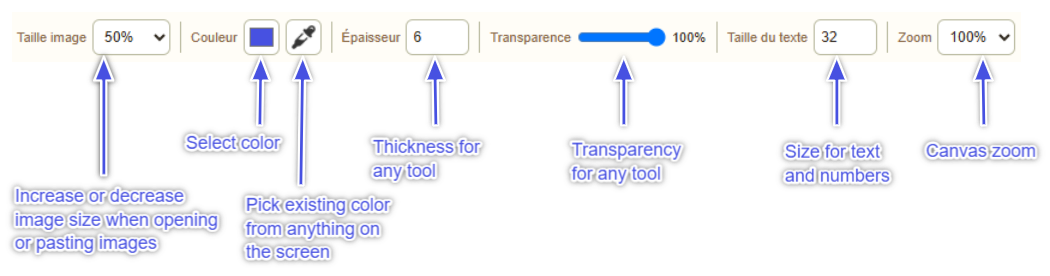
| Ctrl+O | Open an image file. The image is pasted at the current pointer position. Before opening it, use the image size selector to enlarge or reduce the image. |
|---|---|
| Ctrl+Shift+O | Open a Fuze file (.fuze). Reopen a project with its annotations and continue editing it. |
| Ctrl+Shift+S | Save the current project as a Fuze file (.fuze) so you can edit it again later. |
| Ctrl+Alt+C | Copy the annotated image to the clipboard. |
| Ctrl+S | Download the annotated image in PNG format. |
| Ctrl+Alt+Backspace | Clear the entire canvas. |
| ? | Display this help screen. |
| S or Esc | Selection. Deactivate the current tool and return to Selection mode. |
|---|---|
| T | Text. Press Esc to exit text editing. |
| N | Automatically incremented number to indicate sequence. Stroke thickness applies to the circle around the number; text size applies to the digit inside the circle. |
| Shift+T | Stamp. Stroke thickness applies to the border around the stamp text; text size applies to the stamp text. |
| A | Smart Arrow, with generous, pleasing shapes. This is the default arrow tool in Fuze. |
| Shift+A | Normal Arrow. A more traditional arrow. |
| Q | Curved Arrow. An arrow with a Bézier curve. |
| R | Rectangle. |
| C | Circle. |
| F | Felt pen. The stroke is smoothed to produce an elegant line without shaking. |
| Highlight | Rectangle with a transparent fill. |
| B | Blur. Make sensitive information unreadable. |
| Z | Zoom. Enlarge an area. You can increase or decrease the zoom area’s size. To avoid distorting the enlarged area, hold Shift while resizing it. |
| O | Border around an image or the zoom area. You can adjust the border’s size and color. |
| P | Eyedropper. Pick a color and apply it to the currently selected object. |
| Ctrl+A | Select all objects on the canvas. |
|---|---|
| Shift + drag | Use a 10-pixel grid when moving objects. |
| Ctrl + drag an arrow handle | Constrain the arrow angle to 10° increments. |
| Alt + drag an arrow handle | Keep the arrow’s current length. |
| Ctrl + Shift + Alt | Combine all three arrow-handle effects: 10-pixel movement grid, 10° angle increments and constant arrow length. |
| Ctrl+O | Ouvrir un fichier image. L'image sera copiée à la position actuelle du curseur. Avant d'ouvrir l'image, la sélection de la taille permet de l'agrandir ou de la réduire. |
|---|---|
| Ctrl+Shift+O | Ouvrir un fichier Fuze (.fuze). Permet de reprendre un projet avec ses annotations et de continuer à le modifier. |
| Ctrl+Shift+S | Enregistrer le projet actuel dans un fichier Fuze (.fuze) pour pouvoir le modifier plus tard. |
| Ctrl+Alt+C | Copier l'image annotée dans le presse-papiers. |
| Ctrl+S | Télécharger l'image annotée au format PNG. |
| Ctrl+Alt+Backspace | Effacer entièrement le canvas. |
| ? | Afficher cet écran d'aide. |
| S ou Échap | Sélection. Désactive l'outil en cours et revient en mode Sélection. |
|---|---|
| T | Texte. Pour sortir de l'édition du texte, appuyez sur Échap. |
| N | Numéro incrémenté automatiquement pour indiquer une séquentialité. L'épaisseur du trait s'applique au cercle autour du numéro ; la taille du texte s'applique au chiffre à l'intérieur du cercle. |
| Shift+T | Tampon. L'épaisseur du trait s'applique au contour autour du texte du tampon ; la taille du texte s'applique au texte du tampon. |
| A | Flèche Smart, avec des formes généreuses et agréables à regarder. C’est la flèche standard de Fuze. |
| Shift+A | Flèche normale. Une flèche plus classique. |
| Q | Flèche courbe. Une flèche avec une courbe de Bézier. |
| R | Rectangle. |
| C | Cercle. |
| F | Feutre. Le tracé est corrigé pour garantir un trait élégant sans tremblement. |
| Highlight | Rectangle avec transparence à l’intérieur. |
| B | Brouillage, pour rendre illisibles les informations sensibles. |
| Z | Zoom pour agrandir une zone. La zone de grossissement peut être agrandie ou réduite. Pour ne pas la déformer, maintenez Shift pendant le redimensionnement. |
| O | Bordure autour d'une image ou de la zone de grossissement. La taille et la couleur de la bordure peuvent être ajustées. |
| P | Pipette pour prélever une couleur et l’appliquer à l’objet actuellement sélectionné. |
| Ctrl+A | Sélectionner tous les objets du canvas. |
|---|---|
| Shift + déplacement | Utiliser une grille de 10 pixels pour les déplacements. |
| Ctrl + déplacement d'une poignée de flèche | Conserver des angles de 10° pour la flèche. |
| Alt + déplacement d'une poignée de flèche | Conserver la longueur actuelle de la flèche. |
| Ctrl + Shift + Alt | Conjuguer les trois effets sur les poignées de flèche : grille de déplacement de 10 pixels, angles par pas de 10° et conservation de la longueur. |
Annotation tools stay active after you use them, so you can add several objects in a row. Press S or Esc to return to Selection.
When you paste an image or copied objects, the centre of the pasted content is placed at your mouse pointer. The relative positions of objects in a multi-selection are preserved.
Hold Alt while dragging an arrow endpoint to rotate the arrow around its opposite endpoint. Add Ctrl to snap the rotation in 10° increments. Works with normal and Smart Arrows.
When a drawing tool is active, click an existing object to return to Selection and work with that object.
Les outils d’annotation restent actifs après leur utilisation : vous pouvez ajouter plusieurs objets à la suite. Appuyez sur S ou Échap pour revenir à la Sélection.
Lors du collage d’une image ou d’objets copiés, le centre du contenu collé se place sous le pointeur de la souris. Les positions relatives des objets d’une sélection multiple sont conservées.
Maintenez Alt pendant le déplacement d’une extrémité pour faire pivoter la flèche autour de l’autre extrémité. Ajoutez Ctrl pour contraindre la rotation par pas de 10°. Fonctionne avec les flèches normales et les Smart Arrows.
Lorsqu’un outil de dessin est actif, cliquez sur un objet existant pour revenir automatiquement à la Sélection et le manipuler.